- Author
- WhiteBIT

- Date
- Views
- 0
- Reading time
- 5 分钟.
Dust-Free Balance: How the Updated Balance Conversion Tool Works
Remember when tiny balances like 0.000002612 used to sit in your account and quietly bother your inner perfectionist?
Almost three years ago, we made it possible to “clean up the dust” by converting small balances into WBT. Now we’ve updated the feature with more control, more target assets, and automation — so you can manage small crypto and fiat leftovers more flexibly and keep your balance cleaner without extra manual steps.
What’s New?
- The Convert balances button is now available on the Total, Main, and Trade balance screens, so the feature is easier to find.
- When you open the updated feature in the web version for the first time, you’ll see a short pop-up explaining what’s changed. After that, the button will take you straight to the conversion tool.
- In the conversion window, you can choose one of four target cryptocurrencies, see the estimated amount in the selected asset and its USDT/USDC equivalent, and select how you want the conversion to work.
- If weekly auto-conversion is enabled, a green marker appears next to the button. The weekly schedule is based on the date when the feature was last confirmed or updated.
- Fiat balances are now included in balance conversion as well.
- All conversion transactions can be viewed in your account history under the Conversion section.
What Counts as a Small Balance?
A small balance is an asset whose total value across the Main and Trade balances is less than 5 USDT equivalent. This value is calculated separately for each asset.
Please note: the system always takes into account the combined amount of each asset on both balances — Main and Trade. This means that even if you start the conversion from one balance section, the tool checks both balances and processes them together.
The updated feature now includes not only cryptocurrencies but also fiat balances. If the total value of a fiat balance across the Main and Trade balance sections is less than 5 USDT equivalent, it will also be converted into the selected target asset.
Two Conversion Scenarios: One-Time and Weekly
When you click the button, you can choose how you want the conversion to work:
One-time — convert the small balances you have right now.
Weekly — set up automatic conversion once a week. This option is useful if you want to configure the process once and avoid returning to it manually after every transaction or operation.
Available Conversion Options
You can now choose one of the following target assets for conversion:
- BTC;
- USDC or USDT;
- WBT;
- ETH.
The availability of USDC or USDT depends on your region. If one of these options is not available in your region, the system will show the supported alternative.
How One-Time Conversion Works
After opening the conversion window, select the asset you want to convert your tiny balances into. The system will then show the estimated amount you’ll receive after all eligible small balances are converted, along with its USDT or USDC equivalent.
Please note that the 5% fee is already included in the final amount and is not shown as a separate deduction.
After you confirm the conversion, you’ll see a Conversion Initiated screen with the converted amount. The result is credited to your Main balance immediately.
From the one-time conversion completion screen, you can also set up weekly auto-conversion right away, so future tiny balances can be converted automatically.
How Weekly Auto-Conversion Works
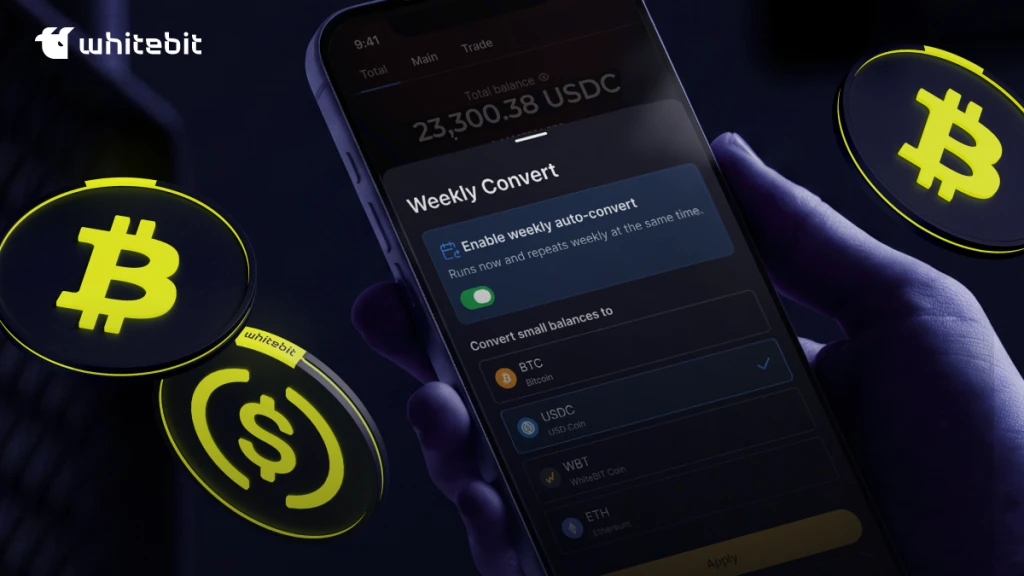
Weekly auto-conversion is turned off by default. To enable it, switch on “Enable weekly auto-convert.” Once it’s enabled, the list of target assets becomes available, and you can choose the asset your tiny balances will be converted into.
After you click Apply, a confirmation screen appears. Once you confirm the settings, two things happen:
1) Your current tiny balances are converted immediately;
2) The weekly schedule is set based on the day of confirmation. For example, if you confirm auto-conversion on a Tuesday, it will continue to run every Tuesday going forward, at the same time as the first automatic conversion.
After the setup is complete, you’ll see the following message at the bottom left of the window: Auto-conversion enabled. You can disable it in the balance settings.” The Convert balances button will also display a green ● Weekly marker, so you can easily see that weekly auto-conversion is active.
How to Manage Auto-Conversion
If auto-conversion is already enabled, you’ll see your current settings when you reopen the tool: the selected asset will already be chosen, and the toggle will be turned on.
From this window, you can:
- Change the target asset;
- Keep the current settings;
- Turn off auto-conversion.
If you change the asset and confirm the update, the system will immediately convert your current tiny balances into the newly selected asset. The weekly schedule will also reset based on the day and time of confirmation.
If you keep the same asset and confirm the settings again, an immediate conversion will still take place, and the weekly schedule will also reset from that moment. This can be useful if you want to change the day when auto-conversion runs.
To turn off auto-conversion, switch the toggle off and click Apply. The asset list will become inactive, the ● Weekly marker will disappear, and you’ll see the Auto-conversion disabled message in the lower-left corner.
Small balances may seem insignificant, but they often create clutter in your account. With regular conversion, these leftover amounts can be turned into an asset you actually choose and use.
The updated feature helps you organize small balances more easily and customize the conversion process to fit your needs.
Enjoy more control, fewer manual actions, and a cleaner balance.
Share to
Published by
WhiteBIT