- Author
- WhiteBIT

- Date
- Views
- 2
- Reading time
- 10 min.
How to Send Bitcoin Between WhiteBIT and a Lightning Wallet
Key takeaways:
- The Lightning Network allows you to deposit and withdraw BTC on WhiteBIT quickly and with low fees;
- Deposit fee: 0.25%. Withdrawal fee: 0.15%;
- Minimum deposit and withdrawal amount: 0.0001 BTC. Maximum: 0.06 BTC;
- Use a wallet that supports Lightning payments.
Which Bitcoin Wallets Support Lightning Network?
The Lightning Network is supported by various Bitcoin lightning wallets, allowing users to send and receive BTC quickly and with low fees.
Some popular wallets that support Lightning payments include:
- Phoenix Wallet
- Wallet of Satoshi
- ZEUS Wallet
- Muun Wallet
- Breez Wallet
- Blink Wallet
- Electrum
- Alby
Keep in mind that Lightning Network features may vary depending on the wallet. Before making a transaction, make sure your wallet supports Lightning invoices and check any applicable fees and limits.
How to Deposit BTC via Lightning Network?
Follow these steps to deposit Bitcoin:
- Sign in to your WhiteBIT account and select “Deposit“;
- Choose “BTC”;
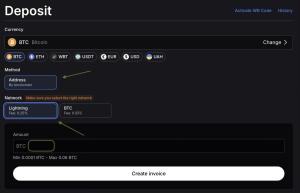
- Select the Lightning network and specify the amount you want to deposit;
- Choose “Create invoice”;
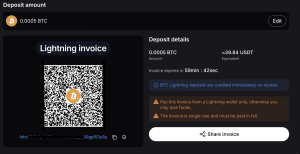
- Open the lightning network wallet or platform you’re sending BTC from and initiate a payment via the Lightning Network;
- Enter the payment details or scan the generated QR code on the sending platform;
- Confirm the transaction in your wallet.
Keep in mind the following deposit limits for the Lightning Network:
- Min deposit: 0.0001 BTC
- Max deposit: 0.06 BTC
Your Bitcoin (BTC) will be credited to your WhiteBIT balance once the Lightning payment is completed.
How to Withdraw BTC via Lightning Network?
Follow these steps to withdraw Bitcoin:
- Open “Balances” in the top-right corner and choose “Withdraw“;
- Select BTC and choose Lightning as the withdrawal network;
- Choose the fee currency;
- Open your receiving wallet, select Receive via Lightning, and generate an invoice for the amount you want to receive. Copy the invoice or display its QR code.
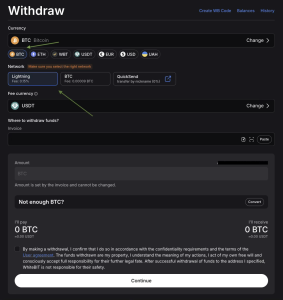
5. Enter the withdrawal amount and click “Continue”;
6. Confirm the withdrawal.
Keep in mind the following withdrawal limits for the Lightning Network:
- Min withdrawal: 0.0001 BTC
- Max withdrawal: 0.06 BTC
Lightning Network Transaction Fees and Limits on WhiteBIT
The following fees and limits apply to BTC transactions via the Lightning Network on WhiteBIT:
- Deposit fee: 0.25% (min. 0.00000025 BTC, max. 0.00015 BTC);
- Withdrawal fee: 0.15% (min. 0.00000015 BTC, max. 0.00009 BTC);
- Minimum deposit and withdrawal amount: 0.0001 BTC;
- Maximum deposit and withdrawal amount: 0.06 BTC.
Fees and limits may change. These are WhiteBIT’s fees. Your external wallet may apply additional routing, service, or channel-opening fees. Check the latest information on the WhiteBIT Fees page before making a transaction.
Common Lightning Transfer Problems & Troubleshooting
Although Lightning Network transactions are usually fast, you may sometimes experience issues when sending or receiving BTC. Here are some common problems and how to fix them:
- Payment failed: First confirm that the original payment has failed and is not still pending. Then check your balance, invoice expiry, and transaction limits before trying again.”
- Expired invoice: Lightning invoices have an expiration time. If your invoice has expired, generate a new one and retry the payment;
- Incorrect payment details: Make sure you’re using the correct Lightning invoice or QR code generated by the receiving wallet or platform.
- Payment stuck or pending: Lightning payments may be delayed due to network liquidity or routing issues. Check the status of your Lightning payment request before trying again to avoid duplicate transfers.
- Amount exceeds the limits: Make sure your transaction amount is within the minimum and maximum limits supported by WhiteBIT.
Conclusion
The Lightning Network allows you to deposit and withdraw BTC on WhiteBIT quickly and with low fees. To make a transfer, use a Lightning-compatible wallet, check the transaction limits and fees, and make sure the payment details are correct.
This content is for informational purposes only and does not constitute investment advice.
FAQ
Share to
Published by
WhiteBIT