- Author
- WhiteBIT

- Date
- Views
- 1
- Reading time
- 5 分钟.
WhiteBIT Lite: The Benefits of Crypto Without the Complexity
Using cryptocurrency can sometimes seem complicated — especially when an app offers many trading features and tools that not everyone uses, or at least not every day.
That’s why we created Lite — a simpler mode in the WhiteBIT mobile app designed for everyday cryptocurrency activities.
It lets you enjoy the benefits of digital assets without unnecessary complexity, thanks to an intuitive interface built around the familiar logic of neobanking apps.
Lite brings together the core features for buying, storing, sending, receiving, and converting assets, as well as managing Crypto Lending plans, all within a simpler interface.
Lite does not require a separate WhiteBIT account. Lite and Pro use the same account, the same balances, and a unified transaction history. Only the interface changes — you can switch between modes without having to register again or log in separately.
What Is Lite Mode on WhiteBIT?
Lite is a mode in the WhiteBIT mobile app designed primarily for people who are just getting started with crypto or who don’t need complex tools. Instead of an advanced trading interface, it focuses on simpler features, such as:
- Viewing and managing assets;
- Buying and converting crypto;
- Sending and receiving assets, including via Quicksend;
- Opening Crypto Lending plans in the Grow section;
- Finding popular assets;
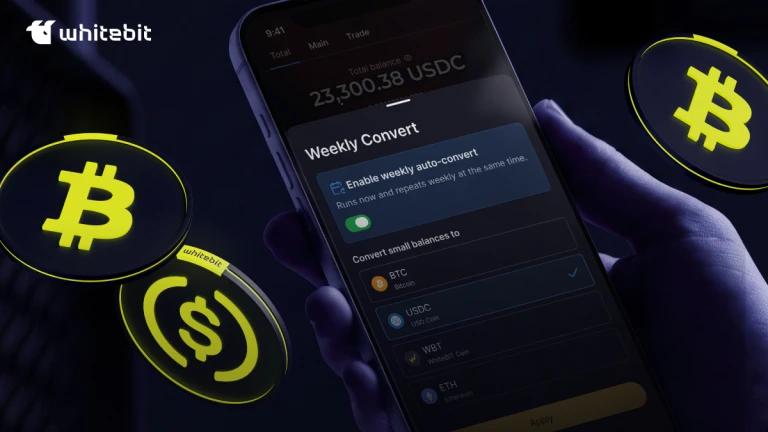
- Setting up recurring crypto purchases via Auto-Buy.
You can switch to Pro mode in 1 click whenever you need access to the full suite of crypto tools.
What remains available in Pro mode: spot and margin trading, management of Spot, Collateral, and Hold balances (the Hold balance shows the amount of WBT in Hold) as well as more advanced tools.
In Lite, these balances remain visible but inactive. You can see the amount held in each one, but actions involving them are available only in Pro mode. Tapping a balance opens a brief explanation of its purpose and an option to switch to Pro.
This way, Lite keeps the interface straightforward without hiding WhiteBIT’s broader capabilities.
One Account, Two Modes
You can switch between Lite and Pro at any time directly in the app. Your balances, assets, and transaction history remain the same — only the way you interact with them changes.
There are several ways to switch from Lite to Pro:
- Open “Account” and tap “WhiteBIT Pro”;
- Use the switch button at the bottom of the “Explore” section;
- Open Wallet and tap an inactive balance: Spot, Collateral, or Hold. The first tap opens a page explaining Pro mode. A second tap confirms the switch.
To switch from Pro back to Lite, open the “Account” section and tap “WhiteBIT Lite.” You don’t need to transfer assets, create a new account, or go through the setup process again. Lite can therefore be useful not only for beginners but also for experienced users who sometimes only need a simpler overview of their balance and basic operations.
Please note that Lite mode is not available for sub-accounts that use email-only authorization.
Home: Everything Important at a Glance
Home is the main screen in Lite mode. Before you log in, it introduces you to WhiteBIT’s features and prompts you to sign up or log in. Once you’re logged in, all widgets become active, and Home becomes your personal dashboard.
The Total balance panel appears at the top of the screen. It shows the total value of your assets in the selected currency and the percentage change for the current day. USDC is selected by default, while the available display currencies may vary depending on your region and account level.
Home also provides access to recent account transactions, settings, and support chat. The navigation includes the “Home,” “Explore,” and “Grow” sections, as well as the “Buy Crypto/Convert” button.
The same panel includes three buttons below the balance: “Receive,” “Convert,” and “Send.”
Cards for Crypto Lending, Apple Pay/Google Pay, and Auto-Buy may also appear on Home. If you dismiss a card without using the featured product, it may reappear the next time you log in.
How to Top up Your Balance
When you tap “Receive,” you first select a currency and then see the top-up methods available for it. The list is personalized based on your region, account tier, selected currency, and the availability of specific methods.
For fiat currencies, Lite displays the deposit methods already available on WhiteBIT.
For crypto, you can choose between two options:
- Buy crypto;
- Receive crypto via an on-chain deposit.
Lite does not introduce separate payment methods. It uses WhiteBIT’s existing capabilities and shows only the options relevant to you and your selected currency.
How to Send or Withdraw Funds
The “Send” button follows the same principle for outgoing transactions. You’ll see a personalized list of available methods, including Quicksend and Withdraw.
Home also features a “Convert” option. It opens the Buy Crypto/Convert page with Convert already selected.
A Clear Plan for Your First Steps
After signing up, it’s not always clear what to do first. The “Get Full Access” widget breaks the account setup process into four clear steps:
- Verify identity — complete the identity verification process;
- Fund balance — tap “Receive” and select an available funding method;
- Secure account — set up two-factor authentication to add another layer of account security;
A progress bar shows which steps you’ve already completed. Completed items move to the bottom, keeping the next steps visible. When only one step remains, the widget shrinks into a collapsible bar so it no longer takes up a large part of the screen.
Once funds first arrive in your account, the app prompts you to select a display currency for your balance. The “Transactions” widget then appears on Home, with the funding transaction shown as its first entry.
Wallet: Your Balance Without Unnecessary Complexity
In the “Wallet” section, you can view your assets in more detail:
- Your total balance and today’s profit or loss as a percentage;
- A pie chart showing the percentage breakdown of your balance;
- A breakdown by product, including the Available (Main) balance, Crypto Lending plans, Auto-Buy, and the visible but inactive Spot, Collateral, and Hold balances;
- A breakdown by individual asset within the selected balance or product.
When viewing your balance by asset, tapping an asset opens its detailed balance view and the available actions: Deposit, Withdraw, and Convert.
When viewing your balance by product, Wallet displays the Available balance, which corresponds to the Main balance in Pro mode. It contains the assets available for everyday operations. Tap it to see the individual assets held in this balance.
Tapping an Earn balance opens the relevant Fixed or Flexible plan view, where you can see your active Crypto Lending plans and projected payouts.
Transactions and Full History: What’s the Difference?
Recent transactions appear on Home after your first deposit. As more entries are added, the widget expands and provides access to your full transaction history in Wallet.
The history is divided into two tabs:
Transactions — a separate list of deposits and withdrawals. It includes standard crypto transactions, balance top-ups via “Receive,” crypto purchases, and transfers made via “Send.”
Full history — a complete record of account activity, including actions performed in Pro mode. It also includes conversions, trades, P2P transactions, internal transfers, referral rewards, and all activity related to Fixed and Flexible plans: openings, closures, cancellations, and credits.
Full history includes search and filters by type, period, status, and asset. Tap any entry to view its details.
Amounts are displayed differently depending on the screen. On the Total balance screen, all assets are shown in the selected currency to display their combined value, so you don’t have to calculate the equivalent yourself. In history, each transaction is shown in the currency in which it was executed, without conversion.
Buying and Converting Without a Trading Terminal
In the Buy Crypto/Convert section, you can buy crypto with fiat or convert assets in just a few taps — without using an order book or an advanced trading interface.
You can access this section from several places in the app: open it directly, access it from Home, select an asset in “Popular Now,” or tap an asset in “Explore.”
“Grow”: Open a Plan and Track Results
The Grow section brings together your Fixed and Flexible Crypto Lending plans. Here, you can view three key metrics:
Predicted earnings — the total amount expected to be credited from active plans according to their terms;
Invested amount — the total amount of assets currently held in active plans;
Total earned — the total amount already credited across all plans.
The “Open a Plan” button takes you to the list of available Fixed and Flexible plans. The “Active Plans” tab lets you manage plans you’ve already opened.
The availability of specific plans may depend on the country specified during identity verification. Before opening a plan, review the current terms displayed in the app.
You can also access the Grow section through the “Crypto Lending” card on Home. This takes you directly from a brief product introduction to the available Crypto Lending plans.
Explore: An Introduction to Assets and Opportunities
Explore is where you can learn about crypto and the ways you can use it on WhiteBIT. The “Learn More” button opens the “Welcome to Crypto” page, designed for beginners. Quick links to Wallet and transaction history let you check your assets and activity without leaving Explore.
The section also includes:
- The Buy Crypto button;
- The Convert button;
- A quick conversion widget;
- Auto-Buy for recurring purchases;
- A list of popular assets, each linking directly to Convert.
Start Simple and Switch to Pro When You Need It
Lite helps you focus on the actions users use most often when getting started: setting up and funding an account, understanding balance structure, buying or converting crypto, opening a Crypto Lending plan, and reviewing the account’s history.
No need to create a separate account or choose one mode forever. Lite and Pro are part of the same app, with the same assets and history, while advanced trading tools become available when you switch to Pro.
Explore the benefits of crypto and useful tools through the simplified Lite mode.
This content is provided for informational purposes only and shall not be construed as financial, investment, trading, or any other form of professional advice. Nothing herein constitutes a recommendation or solicitation to engage in any transaction or investment activity.
Share to
Published by
WhiteBIT